
Welcome to Part 1 of our Back-to-School series! As IT professionals, we know that preparing for the school year isn't just about fresh notebooks and highlighters anymore; it’s about securing your digital life and making smart hardware investments that will last until graduation.
Today, we are breaking down how high school and college students can navigate their respective digital landscapes safely, followed by a guide to buying the right tech.

The Digital Safety Shift: High School vs. College
As students transition from high school to college, the network environments and the security responsibilities change dramatically.
College: The Wild West of Open Networks
College campuses operate like small cities. The network is vast, heavily populated, and largely open, shifting the burden of security entirely onto the student.
- Public Wi-Fi Dangers: Campus networks, dorm Wi-Fi, and the local coffee shop are prime hunting grounds for bad actors looking to intercept unencrypted traffic. Students should use a reputable, paid VPN when accessing sensitive accounts on public Wi-Fi.
- Mandatory Two-Factor Authentication (2FA): A university portal holds sensitive financial aid data, social security numbers, and academic records. Enabling 2FA on school accounts and personal emails isn't just a best practice; it is a necessity.
- Physical Security: The most common data breach on a college campus is a laptop stolen from a library desk when a student steps away for a coffee. Students must set up device tracking (like "Find My Device") and make a habit of physically locking their screens (Windows Key + L or Control + Command + Q on Mac) every single time they stand up.
High School: Navigating Controlled Networks
High schools typically utilize highly controlled networks with strict firewalls and content filters designed to protect students and school infrastructure. However, a secure network doesn't mean a secure student.
- The VPN Trap: Many students download free VPN apps on their devices to bypass school Wi-Fi filters and access social media. What they don't realize is that "free" VPNs often monetize by logging and selling their browsing data, introducing entirely new privacy risks.
- Phishing & Social Scams: High schoolers are prime targets for phishing campaigns disguised as free software downloads, gaming currency generators, or fake scholarship applications.
- The Personal Device Gap: The school's firewall protects the network, but it doesn't protect a student's personal data from malicious apps or poor password hygiene.
Laptop Buying Guide: Specs, Prices, and Myths
Buying a laptop can be overwhelming, but you don't need to be an IT expert to make a smart choice. Here is the reality of what students actually need this year.
What's the right computer to buy, and what should it cost?
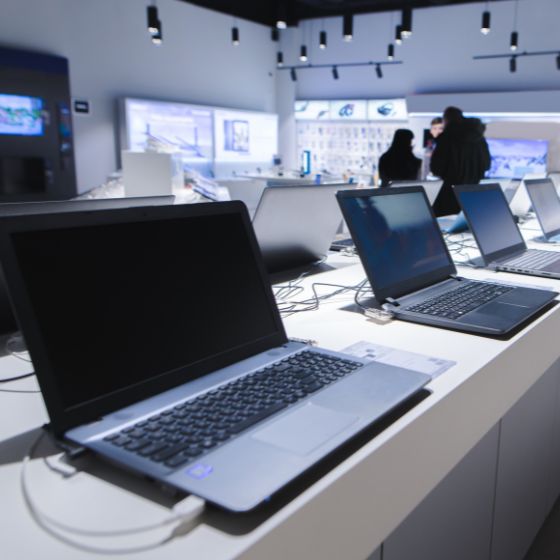
For the vast majority of students, the sweet spot for a reliable laptop in 2026 is between $500 and $900.
In this price range, you can easily secure a machine with an Intel Core Ultra or Snapdragon processor, 16GB of RAM (the modern minimum for smooth multitasking), a fast 512GB Solid State Drive (SSD), and all-day battery life. Models like the ASUS Zenbook 14 OLED or the HP OmniBook 5 are excellent, highly-rated examples of this tier.
The Exceptions:
- Engineering & STEM: Students running CAD software, heavy coding environments, or simulations will need a dedicated graphics card and preferably 32GB of RAM. Expect to pay $1,500 to $2,500+ for workhorse machines like the Lenovo ThinkPad X1 Carbon.
- Creative Majors: Film and digital media students need color-accurate displays and heavy processing power (like the MSI Prestige 16), which also pushes the budget over the $1,500 mark.
Do I really need to pay to get an Apple?
Historically, Macs carried a heavy "premium tax," but the math has shifted. You absolutely do not need an Apple device, as Windows laptops offer incredible performance and value.
However, Apple recently released the MacBook Neo, which starts at just $699 (and drops lower with student discounts). It delivers exceptional battery life and integrates seamlessly if the student already uses an iPhone.
Important Caveat: Always check the student's major requirements before buying. Many engineering and specialized business courses require Windows-only software. In those cases, buying a Mac will cause constant software compatibility headaches.
Do I really need the extra warranty and insurance?
When you reach the checkout counter, you will inevitably be pitched an extended warranty or a protection plan. Here is how IT professionals view them:
- Extended Warranties (Hardware Defect Protection): Skip it. For a standard $600 to $800 laptop, an extended warranty rarely makes financial sense. If a manufacturing defect exists, it usually presents itself within the standard 1-year manufacturer warranty.
- Accidental Damage Protection (Insurance): Consider it carefully. Standard warranties do not cover spilled coffee, cracked screens, or a laptop crushed in a heavy backpack. If the student is accident-prone, studies in chaotic dorms, or travels heavily, paying for accidental damage coverage (like AppleCare+ or a retailer's equivalent) can save you from buying a brand new laptop mid-semester.
Stay tuned for Part 2 of our series, where we will dive deeper into device security and the essential software you need. We’ll also answer two of the most common questions we hear: Is a budget-friendly Chromebook actually good enough for school, and do you really need to pay for a Microsoft Office subscription?